Key Takeaways
- →A degraded battery (below 80% health) is the most common cause of slow iPhones
- →Keep at least 10–15% of your storage free for smooth performance
- →Restarting your iPhone weekly clears RAM and fixes minor glitches
- →Reducing motion and transparency can noticeably speed up older iPhones
- →Reset All Settings is a safe last resort that won't delete your data
Why iPhones Slow Down Over Time
There are several reasons your iPhone might feel sluggish: software updates, full storage, degraded battery, or too many background processes. Before you consider upgrading, try these fixes:
1. Check Your Battery Health
This is the most overlooked cause of slow iPhones. When your battery health drops below 80%, iOS may throttle performance to prevent unexpected shutdowns. Go to Settings > Battery > Battery Health & Charging to check.
Step-by-step:
- Open Settings
- Scroll down and tap Battery
- Tap Battery Health & Charging
- Look at Maximum Capacity — if it's below 80%, your battery needs replacement
- Check if Peak Performance Capability shows a warning
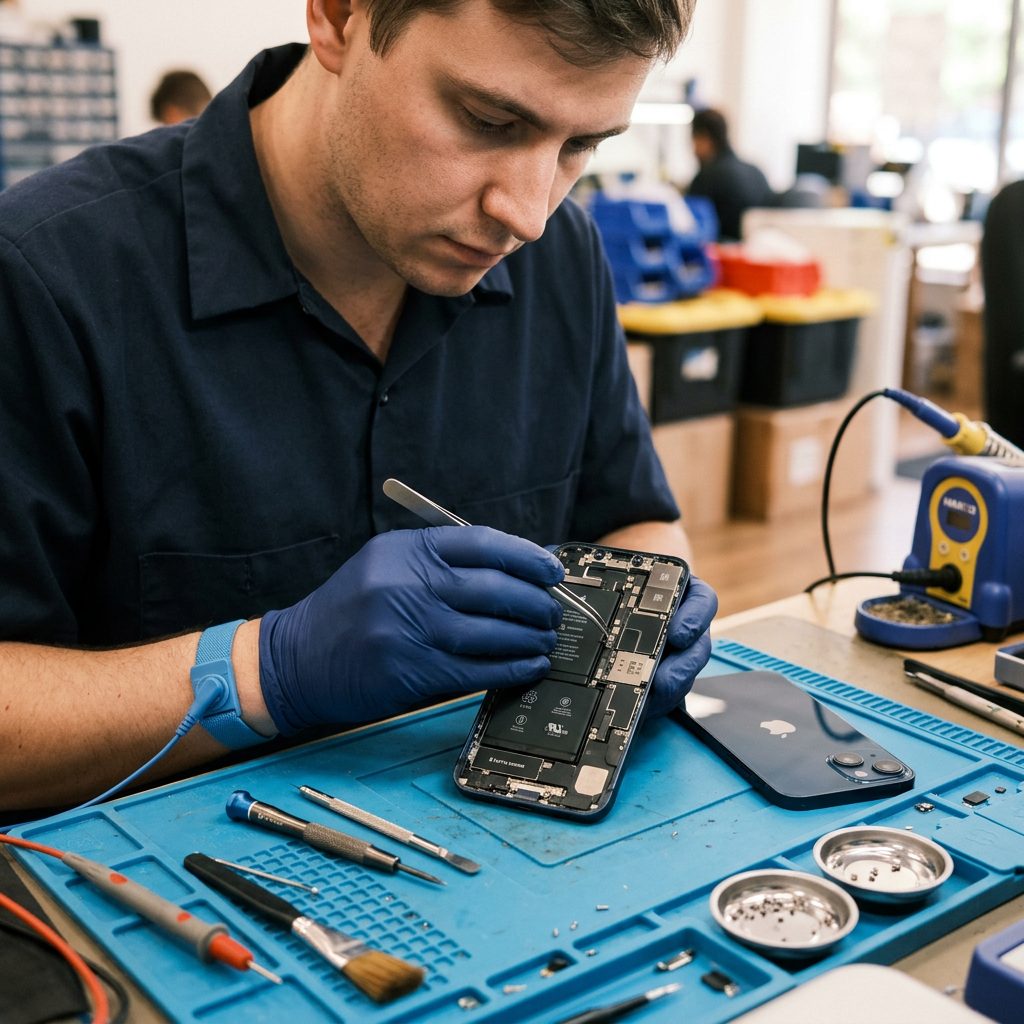
Fix: If your battery health is below 80%, a battery replacement can restore full performance. At our Glendale shop, we replace batteries in 15–20 minutes for all iPhone models.
2. Free Up Storage Space
iPhones need at least 10–15% free storage to run smoothly. When storage is nearly full, the system can't manage temporary files, causing slowdowns.
Step-by-step:
- Go to Settings > General > iPhone Storage
- Review which apps take the most space
- Tap any large app and choose Offload App (keeps data, removes the app)
- Delete old photos or back them up to iCloud
- Clear Safari data: Settings > Safari > Clear History and Website Data
3. Restart Your iPhone Regularly
A simple restart clears temporary files, frees up RAM, and resolves minor software glitches. Many people go weeks without restarting their phone.
Step-by-step (iPhone X and later):
- Press and hold the side button and either volume button
- Wait for the "slide to power off" slider
- Slide to power off
- Wait 10 seconds
- Press and hold the side button until the Apple logo appears
4. Update iOS and Apps
Outdated software can cause performance issues. Apple regularly releases updates with performance optimizations and bug fixes.
Step-by-step:
- Go to Settings > General > Software Update
- Tap Download and Install if an update is available
- Keep your phone plugged in during the update
- Also update apps: open App Store > tap your profile > Update All
5. Reduce Motion and Transparency
iOS animations and transparency effects look great but can slow down older iPhones.
Step-by-step:
- Go to Settings > Accessibility > Motion
- Enable Reduce Motion
- Go back to Accessibility > Display & Text Size
- Enable Reduce Transparency
6. Clear Safari Cache and Website Data
Over time, Safari accumulates cached data that can slow down browsing and the phone overall.
Step-by-step:
- Go to Settings > Safari
- Scroll down and tap Clear History and Website Data
- Confirm — this won't delete your bookmarks or passwords
7. Reset All Settings (Last Resort)
If none of the above fixes work, resetting all settings (not the same as erasing your phone) can resolve deep software issues.
Step-by-step:
- Go to Settings > General > Transfer or Reset iPhone
- Tap Reset
- Choose Reset All Settings
- Enter your passcode to confirm
- Your phone will restart — all settings revert to default, but your data, photos, and apps are preserved
When to Consider a Hardware Check
If your iPhone is still slow after trying all these fixes, there may be a hardware issue — such as a failing battery, damaged logic board, or thermal management problem. Bring it to our Glendale shop for a free diagnostic.
Need a Battery Replacement in Glendale?
If your iPhone is slow due to a degraded battery, we can help. Visit Glendale iPhone & iPad Repair at 1415 E Colorado St, Glendale, CA or call (818) 963-3333 for fast, affordable battery replacement.