Key Takeaways
- →A tempered glass screen protector is essential for iPads — screens are large and expensive to replace
- →Enable Optimized Battery Charging to reduce long-term battery wear
- →Never let your iPad reach 0% — charge at 20–30% instead
- →Glendale summers can exceed 100°F — never leave your iPad in a hot car
- →Detach your Apple Pencil when not in use to prevent constant charging
Why iPad Care Matters
An iPad is a significant investment — from $329 for a base model to over $2,000 for an iPad Pro. With proper care, your iPad can last 5 years or more. Here's how to keep it running like new.
Screen Protection
1. Use a Tempered Glass Screen Protector
iPad screens are large and expensive to replace. A tempered glass protector is essential — it takes the impact of drops and prevents scratches from Apple Pencil use.
What to look for:
- Full-coverage — edge-to-edge protection, not just the active area
- 9H hardness — highest glass protector rating
- Paper-like texture (optional) — improves Apple Pencil writing feel
- Anti-glare coating — reduces reflections in bright Glendale sunlight
Step-by-step installation:
- Clean the screen with the included alcohol wipe
- Use the dust-removal sticker
- Align using the included frame or hinge stickers
- Lay it down from the center — it will self-adhere
- Press out any bubbles with a card wrapped in microfiber
2. Invest in a Quality Case
For iPads, a case isn't just about protection — it's about functionality too. Look for cases that:
- Protect the back and corners
- Have a folding cover for stand functionality
- Are compatible with Apple Pencil attachment
- Have raised edges to protect the screen
Top recommendations:
- Apple Smart Folio — Slim, auto wake/sleep, multiple viewing angles
- OtterBox Defender — Maximum protection for rugged use
- Logitech Combo — Built-in keyboard, great for iPad Pro productivity
- Zugu Case — Magnetic stand with 8 angles, very stable
3. Clean the Screen Properly
Never use window cleaner, rubbing alcohol, or household cleaners on your iPad screen. Use a microfiber cloth slightly dampened with water. For stubborn smudges, use a 70% isopropyl alcohol wipe (Apple-approved).
Step-by-step:
- Turn off the iPad
- Use a dry microfiber cloth to remove loose dust
- Dampen the cloth slightly with water (or use a 70% isopropyl wipe)
- Wipe in circular motions
- Dry with a clean microfiber cloth
Battery Care
4. Enable Optimized Battery Charging
Just like iPhones, iPads benefit from Optimized Battery Charging (Settings > Battery > Battery Health). This reduces battery wear by learning your charging patterns.
Step-by-step:
- Open Settings > Battery > Battery Health
- Enable Optimized Battery Charging
5. Don't Let It Die Completely
Allowing your iPad to reach 0% regularly damages the lithium-ion battery. Try to charge when it reaches 20–30%.
6. Avoid Extreme Temperatures
Don't leave your iPad in a hot car or in direct sunlight. Glendale summers can easily exceed 100°F, which can permanently damage the battery and screen.
Performance Maintenance
7. Keep Storage Under Control
iPads with full storage run slowly. Go to Settings > General > iPad Storage to manage storage. Offload apps you don't use often — this keeps their data but removes the app itself.
Step-by-step:
- Go to Settings > General > iPad Storage
- Review the recommendations at the top
- Tap any large app and choose Offload App or Delete App
- Enable Offload Unused Apps in Settings to automate this
8. Update iOS Regularly
Apple releases iPadOS updates with performance improvements. Keep your iPad updated to the latest version.
Step-by-step:
- Go to Settings > General > Software Update
- Tap Download and Install
- Keep your iPad plugged in during the update
9. Restart Periodically
Restarting your iPad clears RAM and temporary files. Do this at least once a month, or more often if you notice sluggishness.
10. Manage Background App Refresh
Go to Settings > General > Background App Refresh and limit it to Wi-Fi only, or disable it for apps you don't need real-time updates from.
Apple Pencil Care
11. Don't Leave the Pencil Attached When Not in Use
Keeping the Apple Pencil attached to your iPad continuously can cause it to constantly charge, reducing battery lifespan. Detach it when you're done using it.
12. Replace Pencil Tips When Worn
A worn Apple Pencil tip can scratch your iPad screen. Replace it when you notice it feeling rough or when writing becomes less precise.
Step-by-step:
- Unscrew the current tip counter-clockwise
- Screw on a new tip clockwise until it stops
- Don't over-tighten — it should be snug, not forced
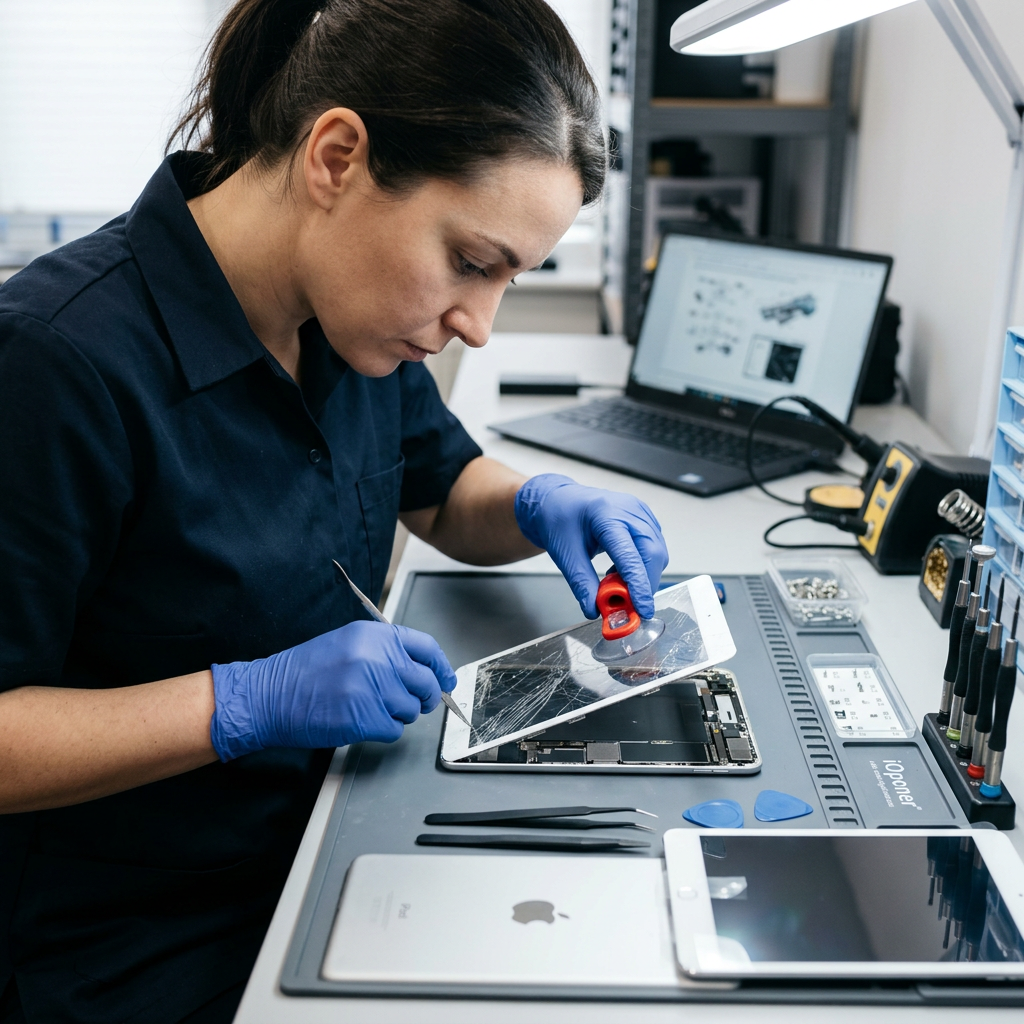
Need iPad Repair in Glendale?
At Glendale iPhone & iPad Repair, we service all iPad models including:
- iPad (all generations)
- iPad Mini (all generations)
- iPad Air (all generations)
- iPad Pro (all generations)
We fix cracked screens, replace batteries, repair charging ports, and more. Visit us at 1415 E Colorado St, Glendale, CA or call (818) 963-3333.