Key Takeaways
- →Heat is the #1 enemy of iPhone batteries — never leave your phone in a hot car
- →Keep your charge level between 20% and 80% for maximum battery lifespan
- →Enable Optimized Battery Charging in Settings to reduce long-term battery wear
- →Battery health below 80% means it's time for a replacement
- →Low Power Mode can be used proactively — not just at 20%
Why Your iPhone Battery Drains Faster in Glendale
Living in Glendale, CA means plenty of sunshine — but heat is one of the biggest enemies of lithium-ion batteries. When your iPhone is exposed to temperatures above 95°F (35°C), the battery degrades faster and may even shut down temporarily to protect itself.
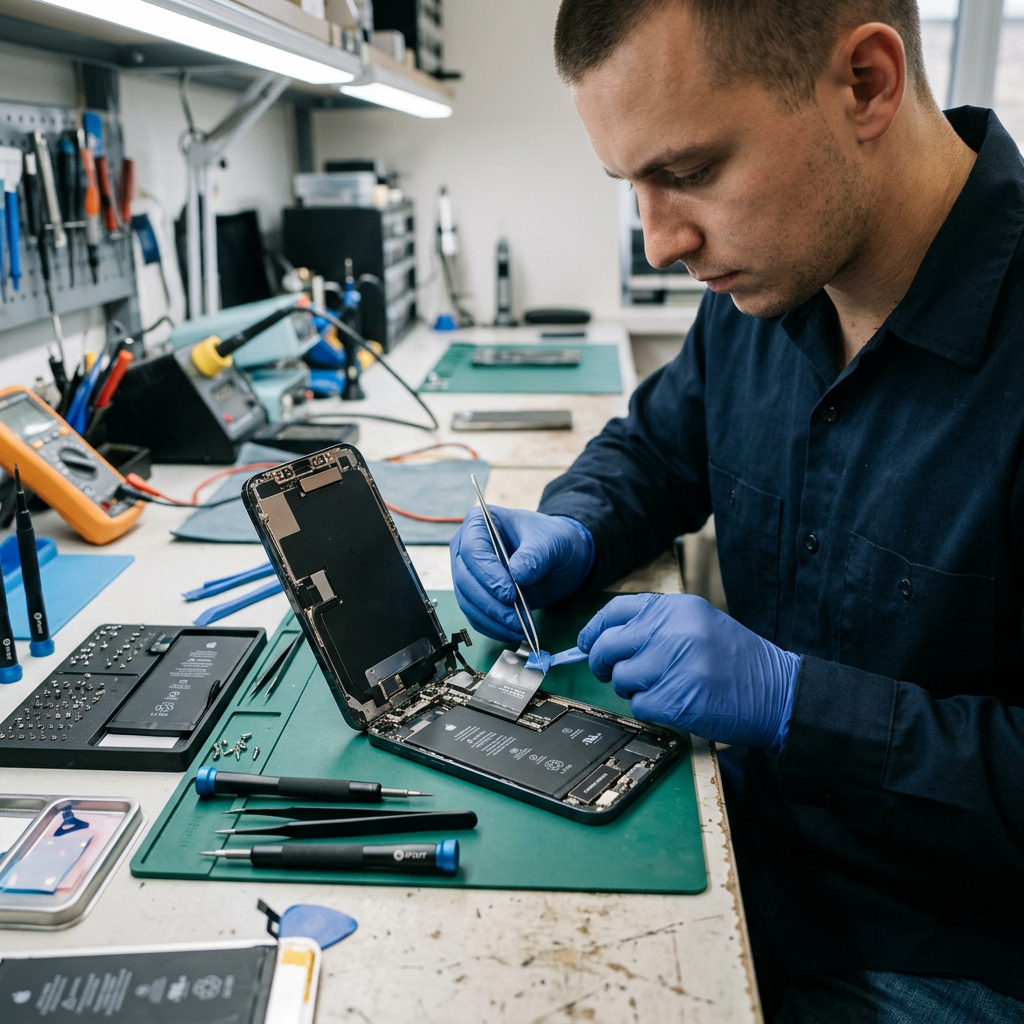
Here are 10 practical tips to keep your battery healthy and lasting longer:
1. Avoid Leaving Your iPhone in a Hot Car
A parked car in Glendale can easily reach 120°F+ in summer. Never leave your iPhone on the dashboard or in direct sunlight. The extreme heat causes permanent battery capacity loss.
Step-by-step: When you park, take your phone with you. If you must leave it in the car, store it in the glovebox or center console away from windows, and crack a window for ventilation.
2. Use Optimized Battery Charging
Go to Settings > Battery > Battery Health & Charging and enable Optimized Battery Charging. This feature learns your daily charging routine and delays charging past 80% until just before you need it, reducing battery wear.
Step-by-step:
- Open Settings
- Tap Battery
- Tap Battery Health & Charging
- Toggle on Optimized Battery Charging
- Keep your phone plugged in overnight — the phone learns your routine
3. Keep Your Battery Between 20% and 80%
Lithium-ion batteries stress the most at 0% and 100%. Try to keep your charge level between 20% and 80% for everyday use. A top-up at 40% is better than waiting until 5%.
4. Turn Off Background App Refresh
Many apps silently refresh in the background, draining battery. Go to Settings > General > Background App Refresh and either disable it entirely or limit it to Wi-Fi only.
Step-by-step:
- Open Settings > General > Background App Refresh
- Set to Wi-Fi Only or Off
- Optionally, disable individual apps that you don't need real-time updates from
5. Lower Your Screen Brightness
The display is the single biggest battery consumer. Use Auto-Brightness (Settings > Accessibility > Display & Text Size) and manually lower brightness when indoors.
6. Use Low Power Mode Proactively
Don't wait until 20% to enable Low Power Mode. Turn it on when you know you'll be away from a charger for a while — it disables background fetch, mail push, and visual effects with minimal impact on daily use.
Quick tip: Add Low Power Mode to your Control Center via Settings > Control Center for one-tap access.
7. Disable Location Services for Non-Essential Apps
Go to Settings > Privacy & Security > Location Services and set most apps to "While Using" or "Never." Only maps and navigation apps need "Always."
8. Remove Thick Cases While Charging
Thick cases trap heat during charging, especially with wireless chargers. Remove the case or use a thin one to allow heat to dissipate.
9. Update iOS Regularly
Apple includes battery optimization improvements in every iOS update. Keeping your iPhone updated ensures you have the latest power management features.
Step-by-step:
- Go to Settings > General > Software Update
- Tap Download and Install if an update is available
- Plug in your phone — updates require 50%+ battery or a charger
10. Know When It's Time for a Replacement
If your battery health drops below 80% (check in Settings > Battery > Battery Health), or your iPhone unexpectedly shuts down, it's time for a replacement. At Glendale iPhone & iPad Repair, we replace iPhone batteries in just 15–20 minutes with a warranty included.
Step-by-step:
- Open Settings > Battery > Battery Health & Charging
- Check the Maximum Capacity percentage
- If below 80%, call us at (818) 963-3333
- Bring your phone in — we'll replace the battery in 15–20 minutes
Need a Battery Replacement in Glendale?
If your iPhone battery isn't holding a charge like it used to, visit us at 1415 E Colorado St in Glendale. We service all iPhone models from iPhone 6s to iPhone 17 Pro Max. Call (818) 963-3333 for a quick quote.