Key Takeaways
- →Offload unused apps — they keep your data but free up the app's storage
- →Optimize photo storage to keep high-res in iCloud and smaller versions on your phone
- →Delete old iMessage attachments — photos and videos in texts take huge space
- →Clear Safari history and website data regularly
- →Review and delete large attachments in Messages with one tap
Why Your iPhone Storage Is Full
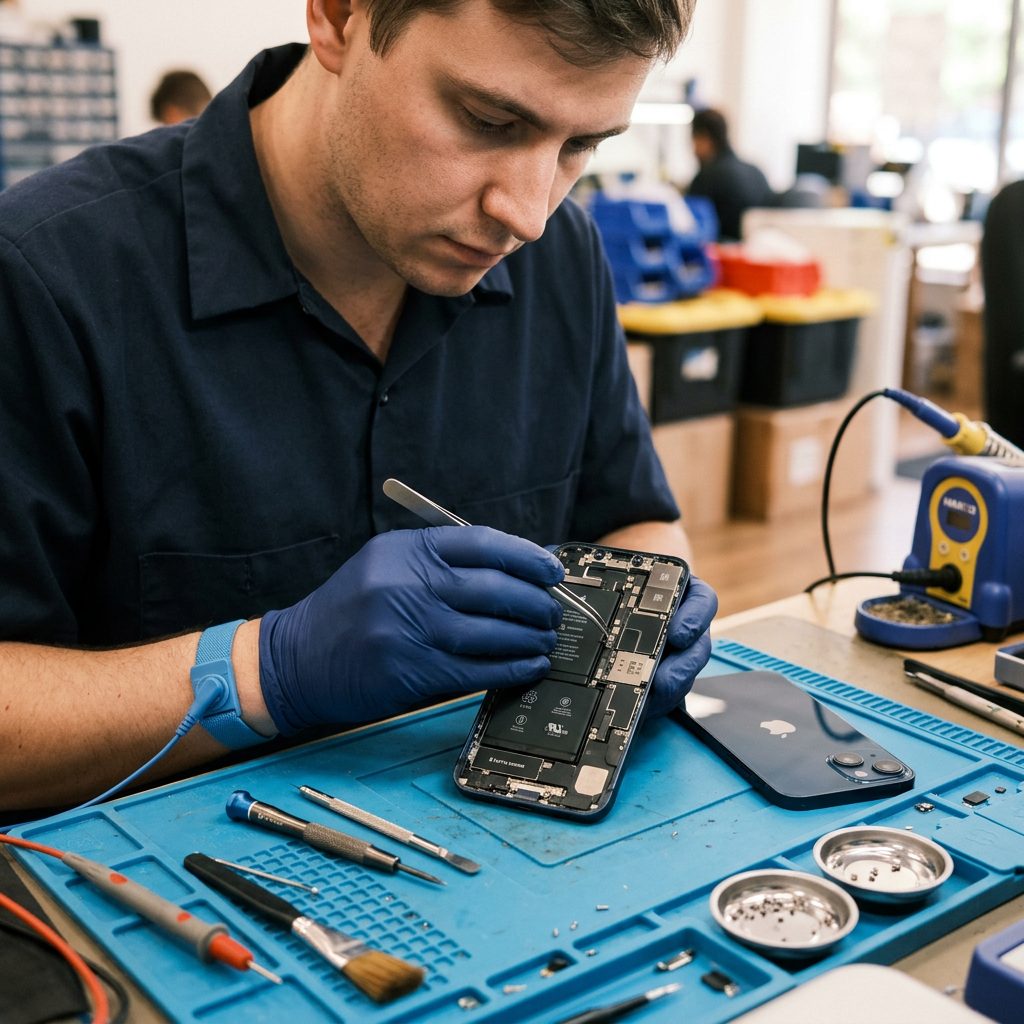
Running out of storage on your iPhone is frustrating — you can't take photos, download apps, or even receive messages. At our Glendale repair shop, customers ask us about this every day. Here are 8 proven ways to free up space fast.
1. Check What's Taking Up Space
Before deleting anything, see exactly what's using your storage.
Step-by-step:
- Open Settings > General > iPhone Storage
- Wait for the list to load — it shows apps sorted by size
- Review the top items — these are your biggest space hogs
- iOS also shows personalized recommendations at the top
2. Offload Unused Apps
Offloading removes the app but keeps all its data — when you reinstall it later, everything is right where you left it.
Step-by-step:
- Go to Settings > General > iPhone Storage
- Tap any large app you rarely use
- Tap Offload App
- Confirm — the app icon stays on your home screen with a cloud icon
- To reinstall, just tap the app icon
Pro tip: Enable Offload Unused Apps at the top of the Storage page to automate this for apps you haven't used in 12+ days.
3. Optimize Photo Storage
Photos and videos are usually the biggest storage consumers. Optimizing storage keeps high-resolution versions in iCloud and smaller versions on your phone.
Step-by-step:
- Go to Settings > [Your Name] > iCloud > Photos
- Enable iCloud Photos (if not already on)
- Go back to Settings > Photos
- Under "Transfer to Mac or PC," select Automatic
- Under "Optimize iPhone Storage," make sure it's checked
Result: Your photos still look great on your phone, but each one takes up a fraction of the space.
4. Delete Old iMessage Attachments
Photos, videos, and GIFs shared in Messages can take up gigabytes of space.
Step-by-step:
- Go to Settings > General > iPhone Storage
- Tap Review Large Attachments (if shown in recommendations)
- Or: Open Messages > tap any conversation > tap the contact name at top > scroll to Photos
- Tap See All and delete large attachments you don't need
- For a bulk approach: Settings > General > iPhone Storage > Messages > review and delete
5. Clear Safari History and Website Data
Safari caches website data to load pages faster, but it builds up over time.
Step-by-step:
- Go to Settings > Safari
- Scroll down and tap Clear History and Website Data
- Confirm — this won't delete your bookmarks or saved passwords
6. Delete Downloaded Music and Podcasts
Streaming is great, but downloaded songs and podcast episodes take up significant space.
Step-by-step:
- Open the Music app
- Go to Library > Downloaded Music
- Swipe left on albums or songs you no longer need offline
- Tap Delete
- For podcasts: Open Settings > General > iPhone Storage > Podcasts and delete old episodes
7. Review and Delete Old Voice Memos
Voice memos can be surprisingly large, especially if you record meetings or lectures.
Step-by-step:
- Open the Voice Memos app
- Swipe left on any memo you don't need
- Tap Delete
- Also check Settings > General > iPhone Storage > Voice Memos for a bulk view
8. Delete Old iOS Update Files
When you update iOS, the downloaded update file stays on your phone until deleted.
Step-by-step:
- Go to Settings > General > iPhone Storage
- Look for "iOS" in the list (it may show as a large item)
- Tap it and select Delete Update
- Don't worry — your phone is already updated; this just removes the installer file
Quick Storage-Saving Summary
| Method | Space Saved | Time Required | |--------|------------|----------------| | Offload unused apps | 1–10 GB | 2 minutes | | Optimize photos | 2–20 GB | 1 minute | | Delete iMessage attachments | 1–5 GB | 5 minutes | | Clear Safari data | 0.1–1 GB | 30 seconds | | Delete old music/podcasts | 1–10 GB | 5 minutes |
Still Need More Space?
If you've tried all these tips and still don't have enough space, it might be time to upgrade to a higher-capacity iPhone. Visit us at Glendale iPhone & iPad Repair in Glendale — we can help transfer your data to a new device and trade in your old one.
Call (818) 963-3333 or visit us at 1415 E Colorado St, Unit G, Glendale, CA 91205.